In this article:
Creating a mailing
- In the section, click the New mailing button.

Or use the shortcut in the left-hand navigation: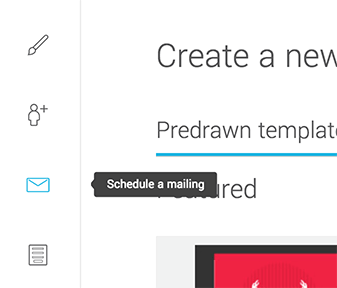
- Select a template you have already customized from the list.

- Choose if you want to customize your template or not. If you choose no, continue to step 7.

- Choose your favorites images, texts and links.
- Test your mailing! Use the test mailing option to make sure that it works properly. Try your mailing in different platforms (Hotmail, Gmail, Outlook, etc.).
- Click Continue for the next step, or Save draft to continue later.
In the Your mailing section, edit the subject of your mailing if need be. The subject (or title) of the email is very important because it's one of the first things your recipients will see in their inbox when they will receive your email. It will help them decide if they open it or not.
Then, enter a preview text for your mailing. The preview text is a short summary of the content of your mailing. It will be displayed after or beside the sender name and your email subject in your recipients' inbox.
Learn more about the preview text and the best practices to write a good one >If your template contains an RSS/Atom block, a Your mailing contains RSS blocks section also appears. Choose what should happen if the feed content can’t be retrieved when the mailing goes out.
- Under the To whom section, select the target group or groups to whom you would like to send your message.

Next, choose when your mailing should go out:
- Send now: your email is sent as soon as you finish setting up the mailing.
- Choose the sending time: schedule the date and time of your mailing in advance. This option is especially handy if you’re planning a vacation.
- Recurring mailing: your email goes out automatically at the frequency you choose (daily, weekly or monthly). Available with the Plus and Pro plans.
Learn more about recurring mailings >
The time zone shown above the options is your account’s time zone. To find out how to change it, click About the time zone.

- Check and modify, if necessary, your coordinates (from, sender address, return address).

- Choose your preferred language. The footer of your mailings will be displayed in that language.
You can also select a link to update your profile.
Learn more about profile update forms >
- Select the type of tracking for your delivery statistics.
For more information, please refer to the following pages:
About anonymized mailing statistics
Mailing statistics
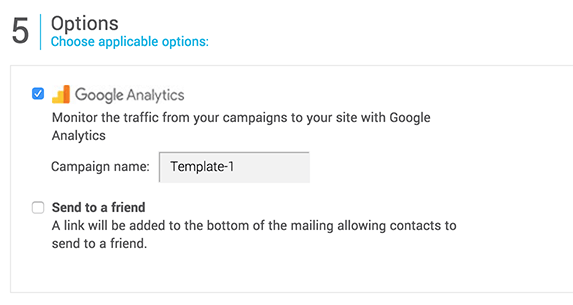
Activate, if necessary, the Google Analytics option. This will automatically add UTM parameters to all your email links.
Google Analytics: Use this option to automatically create a campaign in the target sites of your clickable links. Enter a campaign name without accents, special characters or spaces, and you are ready to go. To avoid problems with your links, make sure that the sites linked to your mailing allow Google analytics.
- When you are done, click on Next.
- A Confirm your mailing pop-up shows a summary of your mailing: subject, sender, target groups and number of recipients, scheduling, personalization and tracking, and link check. Any invalid links or unavailable RSS/Atom feeds the check finds are listed in this pop-up. If everything looks good, click Confirm. To make changes, click Cancel.

Email footer and unsubscribe link
When your mailing is ready to start, the system begins to build your emails (one email per recipient). A footer containing your contact information, an unsubscribe link, a link to contact us and report an abuse and a link to our anti-spam policy is automatically added to the bottom of each email during this process.
Except your coordinates , the footer can't be modified. This information (address and unsubscribe link) at the bottom of your email is necessary to ensure that your mailings comply with the Canadian Anti-Spam Law (Bill C-28).
You can set up different addresses depending on the language, so your recipients see the footer that corresponds to the language of the send.
How to update your contact information in the footer >
Learn how the unsubscribe link in the email footer works >
Saving a mailing (draft)
At the bottom of the editing page, click on Save a draft. Your email will be added to the draft list and will remain available until you decide to send it. When you are ready to continue to edit your draft, go to the Mailings menu and select Drafts. Then, click on the Edit optoin of the actions menu located at the right-end of the draft's row.
A draft is also created automatically when you cancel a scheduled mailing, or when a mailing with an RSS/Atom block can’t go out because the feed is empty or unavailable.
Learn more about the RSS/Atom block >
Mailing delivery time
It depends on how many emails need to be sent. Once your mailing is in progress, you can see the estimated end time in the Your mailings in progress section of your Dashboard, under Estimated end. This time is approximate and updates as the mailing progresses.

Mailing list update
Viewing all the scheduled mailings
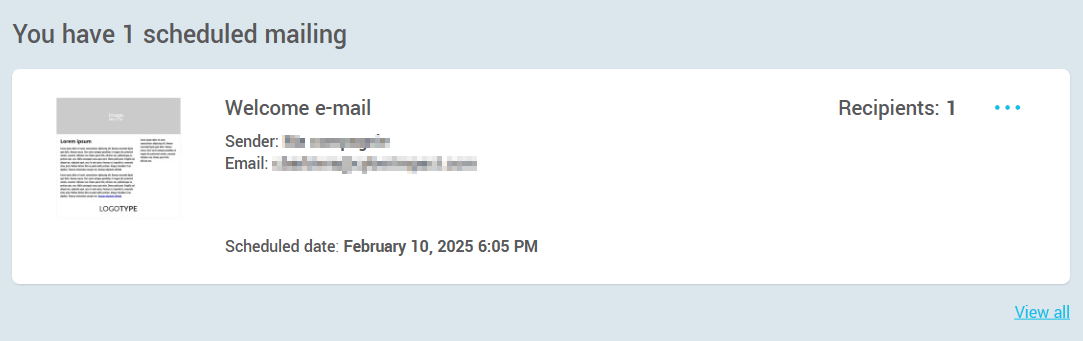
Only the next scheduled mailing is visible from your Dashboard. To see all the scheduled mailings, go to the Mailings section and select Scheduled mailings.
To the right of each mailing, you’ll find options to cancel the mailing, view the target groups, change the mailing date and time, and duplicate the mailing. A cancelled mailing is saved in your drafts.
Mailings that come from a recurrence show the recurrence name below their subject, and only the next one is listed. For these mailings, the Change date and time option isn’t available. Cancelling one only cancels that mailing, and the recurrence continues. To view and manage all your recurrences, go to the Mailings menu, then the Recurring mailings tab.
Learn more about recurring mailings >

Re-sending a previous mailing

Google Analytics and problems with hyperlinks
- Your statistics do not show for a particular link
- One or more than one link is redirected to the wrong page or seems to be broken